Salesforce Field Service Auto Dispatch with Scheduling Policies and Work Rules
The auto dispatch job ran at 6:00, the dispatcher console shows a full day, and a dozen appointments are still sitting in Scheduled while one technician has nine jobs and two others have three. Nothing is broken. Auto dispatch only flips the status of work that is already scheduled, and the scheduler picked the same person all week because the policy told it to.
In short
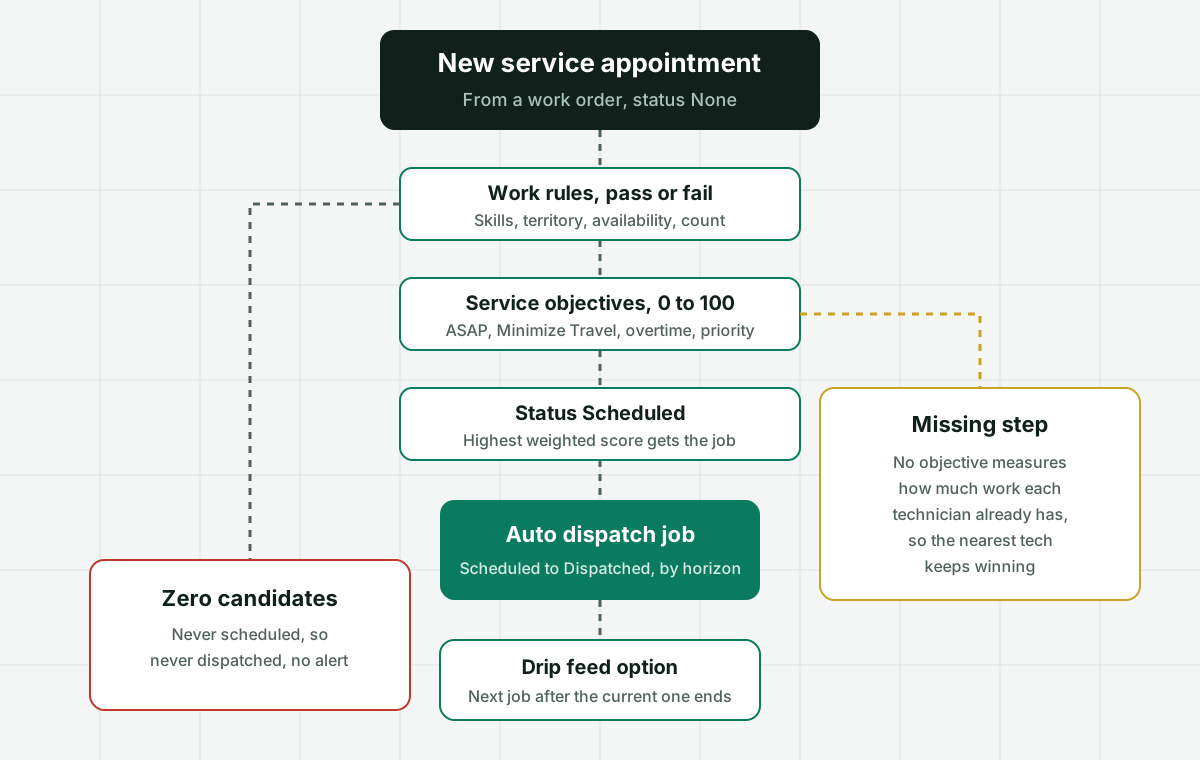
Salesforce Field Service auto dispatch is a scheduled job that changes service appointments from Scheduled to Dispatched within a horizon of days, filtered by criteria you set. It does not choose the technician. The technician is chosen earlier by the scheduling policy: work rules remove candidates who fail a pass or fail test (skills, territory, availability), then service objectives such as ASAP and Minimize Travel grade the rest from 0 to 100 and the highest weighted score wins. No standard objective measures how evenly work is spread, so the nearest or earliest technician tends to win again and again.
Why it fits
This page is for a field service operations lead, dispatcher or Salesforce Field Service admin whose appointments sit in Scheduled, land on the same few technicians, or need a reason a planner can defend, and who wants every job owned by an available technician by a rule the team agreed on.
Auto dispatch does not assign anyone
The scheduled job only moves appointments that are already Scheduled to Dispatched, inside the horizon and filter you define. An appointment with no assigned resource is never picked up, so the fix for stuck work is in scheduling, not in the dispatch job.
Work rules are pass or fail
Match Skills, Match Territory, Service Resource Availability, Excluded Resources and the other work rules shrink the candidate list. A single rule that nobody passes means no candidate at all, and the appointment stays unscheduled.
Objectives grade, and the top score wins
ASAP, Minimize Travel, Minimize Overtime, Preferred Resource, Resource Priority and Skill Level each give a 0 to 100 grade, weighted by the policy. The scheduler recommends the highest total. Nothing in that list rewards giving the job to the technician with the lightest week.
The closest tech keeps winning
With ASAP and Minimize Travel weighted high, the technician who lives nearest the dense part of a territory, or who has the emptiest morning, scores best on job after job. The schedule is efficient and the workload is lopsided.
Count rules cap load, they do not balance it
A Count work rule can stop a resource from taking more than a set number of appointments or hours. That prevents overload but still sends work to the same people up to the cap, and the rule uses midnight as the start of day even if your day starts later.
Two permission sets decide who can run it
Setting up the auto dispatch job or drip feed needs the FSL Admin Permissions or FSL Dispatcher Permissions permission set. Without one, the option is simply not there for that user.
Side by side
How a Salesforce Field Service appointment gets a technician, and where each step leaks
| Step | What it does | Where it is set | Leaks when | Balances workload |
|---|---|---|---|---|
| Work rules | Remove candidates that fail skills, territory, availability or custom tests | Scheduling policy, Work Rules related list | One strict rule leaves zero candidates and the job stays unscheduled | No |
| Service objectives | Grade remaining candidates 0 to 100 and weight the grades | Scheduling policy, Service Objectives related list | ASAP and Minimize Travel reward the same nearby technician every time | No |
| Count work rule | Caps appointments, hours or a custom value per resource | Work rule of type Count | Cap is hit early in the week by the favored tech, then work spills unevenly | Caps only |
| Schedule or Book Appointment | Places one appointment on the best scoring candidate | Dispatcher console, Book Appointment action, Schedule action | Dispatchers override by drag and drop with no recorded reason | No |
| Optimization (global, in-day, resource) | Re-plans many appointments at once against the policy | Optimization requests and scheduled optimization | Runs inherit the same objectives, so the same imbalance is optimized harder | No |
| Auto dispatch job and drip feed | Moves Scheduled appointments to Dispatched, or releases the next one when the current one completes | Field Service Admin app, scheduled jobs and drip feed settings | Appointments never scheduled are never dispatched, and nothing alerts on them | No |
Sources: Salesforce Help articles on Field Service scheduling policies, work rules (Match Skills, Match Territory, Count Rule), automatic dispatch and drip feed, and the Trailhead module on scheduling policies (read October 2026).
In detail
How Salesforce Field Service auto dispatch really works, and what dispatch teams end up building
What auto dispatch does, and what it does not
In Field Service, dispatching and scheduling are two different steps, and most confusion about auto dispatch comes from treating them as one. Scheduling decides who does the job and when. Dispatching tells the technician the job is theirs and pushes it to the mobile app. The auto dispatch feature belongs to the second step only.
You set it up as a scheduled job in the Field Service Admin app. You pick when the job runs, a filter that selects which service appointments it should consider, and a horizon, which is how many days ahead it should dispatch. When the job runs, it changes the status of the matching appointments from Scheduled to Dispatched. That is the whole job. It does not look for a technician, it does not re-check skills, and it does not rebalance anything.
Two consequences follow, and both show up as support tickets to the Salesforce admin. First, an appointment that never reached Scheduled, because no candidate passed the work rules or because nobody ran the scheduler on it, is invisible to auto dispatch. It does not fail, it is simply not in scope. Second, if the dispatch filter is narrower than the scheduling filter (a different territory list, a status filter, a work type filter), part of the scheduled work never moves to Dispatched and technicians do not see it on their phones. When appointments are stuck in Scheduled, compare the two filters before anything else.
Setting up the job or drip feed requires one of two custom permission sets, FSL Admin Permissions or FSL Dispatcher Permissions. A dispatcher who cannot find the option usually lacks the permission set, not a license.
Drip feed, the other half of automatic dispatch
Drip feed is the alternative to dispatching a whole day at once. Instead of releasing every appointment in the morning, it waits until a technician completes the current appointment and then dispatches the next one. Salesforce describes the benefit plainly: each mobile worker is insulated from last minute schedule changes and only sees the job in front of them. The drip feed rate is defined per service territory or per resource, so one region can run on drip feed while another dispatches the full day.
Drip feed is excellent for volatile days, such as utility work after a storm, where the plan at 7:00 is wrong by 10:00. It has a cost that teams find out later. Because only the next job is dispatched, the technician cannot plan their own route or call ahead to the third customer of the day, and a dispatcher who reshuffles the schedule mid day is now reshuffling work that technicians cannot see yet. Teams also report the opposite surprise: the next appointment gets dispatched automatically when the previous one is completed or canceled, which is drip feed working as designed. If a dispatcher wants manual control, the Auto Dispatch and Drip Feed settings are where to switch it off.
Scheduling policies, the part that actually picks the technician
A scheduling policy is made of two things: work rules and service objectives. Trailhead puts it in one line, and it is the most useful sentence in the whole topic: work rules determine which candidates can complete the job, and service objectives are more like numeric grades, weighted from most to least important. The scheduler tallies the scores and recommends the candidate with the highest score.
Field Service ships four standard policies. Customer First grades first by the customer preferred technician and by how soon the job can happen, with travel second. High Intensity grades first by minimizing travel, then by earliest time, and is meant for high volume periods such as storms, when productivity is the priority. Soft Boundaries behaves like Customer First but lets technicians share time between territories. Emergency is meant for the Emergency Chatter action, for jobs like someone stuck in an elevator. You can edit these or build your own.
The default policy for the dispatcher console is set in Field Service Settings under Dispatcher Console UI, Gantt Configurations. To use a different policy per appointment, add the Scheduling Policy Used field to the service appointment layout. A common hidden problem is a policy change made in the admin app while dispatchers keep scheduling under the old default in the console, so the team believes a rule is live when it is not being used for most of the day.
Field Service work rules, and the one that empties the candidate list
Work rules are pass or fail filters. A candidate who fails any rule in the policy is out. The common types are Match Skills (the technician holds the skills on the work order, optionally at a minimum level), Match Territory (the technician is a primary or relocation member of the appointment territory), Service Resource Availability (the technician is free, with travel time and breaks accounted for), Excluded Resources, Working Territories for shifts in more than one territory, Match Time Rule, Match Boolean for checkbox fields on the resource, Extended Match for custom criteria through junction objects, and the Count rule. With Enhanced Scheduling and Optimization you also get Match Fields for optimization and a Work Capacity rule that is only available there.
Salesforce also asks for at least one database rule in each policy, so the candidate list is narrowed in the database before the heavier grading runs during Appointment Booking and Get Candidates. Policies without one get slow, and slow scheduling is a reason dispatchers stop trusting the tool and drag jobs by hand.
The rule that most often leaves appointments unscheduled is Match Skills, and the cause is data rather than logic. A work type that requires a skill level of 5 when no technician has been given a level above 4, a skill expired on a resource record, or a new skill added to the work type but never added to the people who already do that work, all produce the same symptom: zero candidates, an appointment that never reaches Scheduled, and an auto dispatch job that never sees it. Before rewriting the policy, run Get Candidates on one stuck appointment and read which rule removes each technician.
Service objectives, and why work piles onto one technician
The standard objectives listed in Trailhead are ASAP, Minimize Overtime, Minimize Travel, Preferred Resource, Resource Priority and Skill Level. Salesforce Help also documents objectives such as Group Nearby Appointments and Minimize Gaps. Each one produces a grade from 0 to 100. Under ASAP, the earliest possible slot scores 100 and the last slot before the due date scores 0. The policy weights the grades and the highest total wins.
Read that list again with one question in mind: which objective rewards giving the job to the technician who has done the least work this week? None of them do directly. ASAP rewards the technician with the emptiest calendar right now, which sounds like balance but is not, because the person who finished early yesterday is also the person who is free earliest today. Minimize Travel rewards whoever is closest, and in most territories one or two technicians live or finish their routes near the densest cluster of customers. Put ASAP and Minimize Travel at high weights, which is what most policies do, and the same people top the grade on job after job.
This is the pattern behind the most common complaint dispatch managers bring to their admin: the schedule looks efficient on the Gantt and the team says it is unfair. Both are true. The optimizer is doing what it was told. Fairness was never one of its goals, and no weight setting turns a travel objective into a workload objective.
Count rules and other ways teams try to force balance
The native tool for preventing overload is the Count work rule. It restricts scheduling by the number of assignments, hours worked, or a custom value, so you can say no technician takes more than six appointments a day, or more than eight hours of a certain work type. Two details matter. You can add up to ten Count rules that count custom field values in one policy, and the Count rule uses midnight as the start of the day even if your day start is customized, which surprises teams running night shifts.
A cap is not balance. With a cap of six, the favored technician still gets the first six jobs, the second favorite the next six, and the person furthest away gets what is left. On a light day the cap never binds and the imbalance is as large as it was before. Teams then try three workarounds. They lower Minimize Travel and raise Minimize Overtime, which helps a little and costs real drive time. They add a custom Resource Priority that a planner edits by hand each week, which works until the planner forgets. Or they let dispatchers drag jobs across the Gantt to even things out, which works and leaves no record of why a job moved, so nobody can explain the outcome to a technician or to a customer who asked for the earlier slot.
What Salesforce Field Service costs before routing even starts
On the Salesforce Field Service pricing page, read in October 2026, Dispatcher and Technician are each $175 per user per month billed annually. Contractor Plus is $80 per user per month or $32 per login. Field Service Plus, which combines Dispatcher and Technician with Service Cloud and Sales Cloud functionality, is $230. Agentforce 1 Field Service is $650. Scheduling and optimization are listed across the editions, and there is a 30 day trial without a credit card.
The footnotes carry the conditions that shape a quote. Field Service requires at least one Service Cloud user license, existing Service Cloud customers need at least one Dispatcher license, and Dispatcher and Technician licenses may not be used for contact centers or case management. So a 25 technician crew with three dispatchers is 28 field service seats, about $58,800 a year at list price, before the Service Cloud license and any implementation partner. The detailed seat math, including when Field Service Plus is cheaper than separate licenses, is in our Salesforce Field Service dispatcher license cost breakdown.
Where Assigner fits beside Salesforce Field Service, and where it does not
If your work is route heavy, with technicians driving between many sites a day, customers booking two hour arrival windows, and travel as the biggest cost, the Field Service scheduler is the right engine. Nothing we sell optimizes routes or time slots, and you should not try to rebuild that.
Assigner does the decision Field Service leaves out: who should own this job so that work is spread fairly and the reason is written down. Each new work order or service appointment can be sent to Assigner, which applies rules your team writes and picks one owner by live availability, current open workload, skills, and territory, using round robin, weighted rotation, load balancing, or priority order. The result is written back to the record with a reason, such as next in rotation among the four HVAC technicians in the North territory with fewer than five open jobs. Field Service can still schedule the time slot for that technician, and auto dispatch still moves it to Dispatched.
It fits best in three situations. Teams whose work is not travel bound, such as depot repair, remote support, inspections booked by day rather than by hour, or work orders triaged before a site visit is planned, and who are paying for optimization they barely use. Teams that like the Field Service schedule but need fair distribution and an audit trail across the crew. And teams deciding whether every coordinator truly needs a $175 Dispatcher seat. Assigner is $7 per user per month billed yearly, or $15 billed monthly, and the demo runs the real assignment engine on sample work.
Questions buyers ask
Frequently asked questions
What is auto dispatch in Salesforce Field Service?
It is a scheduled job, set up in the Field Service Admin app, that changes service appointments from Scheduled to Dispatched. You choose when it runs, a filter for which appointments it considers, and a horizon in days. It does not choose a technician; the scheduling policy did that earlier.
Why are my Field Service appointments stuck in Scheduled?
Usually the auto dispatch job filter does not match those appointments, the horizon is shorter than their date, the job is not scheduled to run, or drip feed is holding them until the current job completes. Compare the dispatch filter with the filters dispatchers schedule from before changing the policy.
Why is an appointment never scheduled at all?
Every candidate failed at least one work rule. Missing or expired skills, a skill level nobody holds, a technician who is not a primary or relocation member of the territory, or no availability in the window will all empty the list. Run Get Candidates on the appointment to see which rule removes each technician.
What are scheduling policies in Salesforce Field Service?
A scheduling policy combines work rules, which are pass or fail filters on candidates, and service objectives, which grade the remaining candidates from 0 to 100 with weights. The scheduler recommends the candidate with the highest total. Customer First, High Intensity, Soft Boundaries and Emergency ship as standard policies.
What are work rules in Salesforce Field Service?
Work rules decide which technicians can do a job. Common types are Match Skills, Match Territory, Service Resource Availability, Excluded Resources, Working Territories, Match Time Rule, Match Boolean, Extended Match and Count. A candidate who fails any rule in the policy is removed before grading.
How does scheduling priority work in Field Service?
Priority decides which appointments get placed first when there is not enough capacity, mainly during optimization. It does not change which technician wins a single appointment; that comes from the work rules and the weighted service objectives in the policy.
Does Salesforce Field Service balance workload between technicians?
Not directly. The standard objectives reward earliest time, short travel, low overtime, preferred and priority resources, and skill level. A Count work rule can cap appointments or hours per resource, which prevents overload but still sends work to the same people until they hit the cap.
What is drip feed in Salesforce Field Service?
Drip feed dispatches the next appointment only after the technician completes the current one, with a rate set per service territory or resource. It keeps technicians focused on one job when the plan changes often, but they cannot see the rest of their day in advance.
What permissions do I need to set up auto dispatch?
One of the custom permission sets FSL Admin Permissions or FSL Dispatcher Permissions. Without one of them, the scheduled job and drip feed setup are not available to that user.
How do I change the default scheduling policy in the dispatcher console?
In Field Service Settings, open Dispatcher Console UI and then Gantt Configurations and choose the default policy. To use a different policy for individual appointments, add the Scheduling Policy Used field to the service appointment page layout.
How much does Salesforce Field Service cost per user?
The pricing page lists Dispatcher and Technician at $175 per user per month billed annually, Contractor Plus at $80 per user or $32 per login, Field Service Plus at $230 and Agentforce 1 Field Service at $650. At least one Service Cloud user license is also required.
What does fair work order assignment software for Salesforce cost?
Assigner is $7 per user per month billed yearly on Starter, or $15 billed monthly, with plans from 5 users. It picks the technician by rotation, open workload, skills and availability, writes the reason on the record, and leaves time slots and dispatch to Field Service.
Keep reading
Related routing pages worth reading next:
- Dispatch assignment - Assigning jobs to crews by availability and load, whatever the dispatch system.
- ServiceNow work order task assignment - The same dispatch group and territory questions in ServiceNow Field Service.
- Salesforce skills based routing - How Omni-Channel matches skills for cases and chats on the service side.
- Salesforce round robin - Rotating records across a team in Salesforce, and where Flow rotation breaks.
- Automatic load assignment in dispatch software - How dispatch tools spread jobs, and what load really means in each.
- Salesforce Field Service dispatcher license cost - Dispatcher, Technician, Contractor and Field Service Plus seat math for a real crew.
Stop hand-sorting your incoming work
Let Assigner route it to the right available person by skill, workload, and availability, using rules you control. Nothing sits unassigned and no one gets cherry-picked. Every assignment shows why.