Jira Service Management Assign Ticket to Group or Team with Automatic Ticket Assignment
A network outage ticket comes in through the portal at 9:10. It is clearly a job for the infrastructure team, so somebody types Infrastructure into the Assignee field and Jira refuses, because Assignee only accepts a person. The ticket goes to whoever was nearest, that person is on vacation, and the outage ticket sits untouched until lunch.
In short
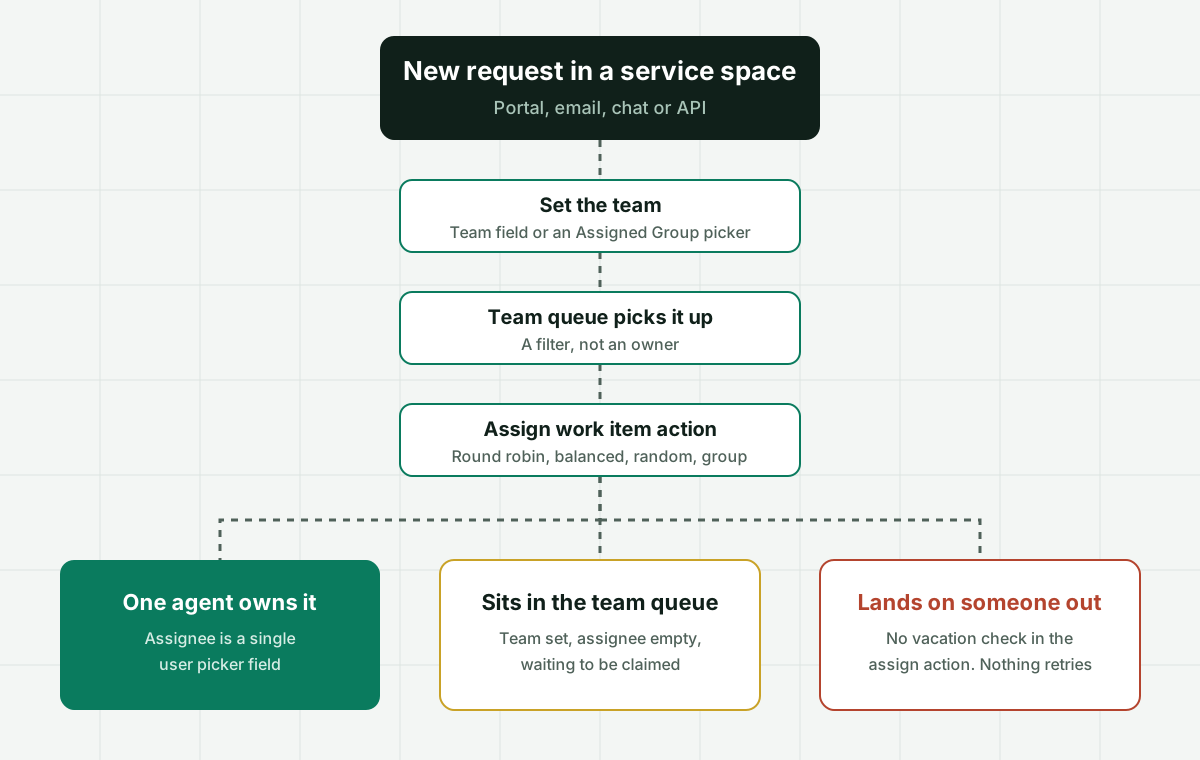
In Jira Service Management you cannot put a group or a team in the Assignee field. Atlassian documents it plainly: the Assignee field is a single-user picker, and a Jira assignee is an individual user. To assign a ticket to a team you set the Team field (Atlassian Teams) or a custom group picker field such as Assigned Group, build a queue per team on that field, and then use the automation action Assign work item to pick one person, by round robin, balanced workload, random, or anyone in a user group. That action does not check vacations or availability, so tickets can still land on someone who is out. Assigner adds that last step: it picks an available agent in the right team, respects capacity, and records why.
Why it fits
This page is for a JSM admin, service desk manager or IT operations lead whose tickets need to go to a specific team first and then to one available agent in it, and who is tired of team queues where work waits to be claimed or lands on someone on leave.
Assignee holds one person, never a team
Atlassian support says the Assignee field is a single-user picker. Every team-assignment design in JSM is really two fields: one that names the team and one that names the agent who will do the work.
Atlassian Teams come first, a group picker second
The Atlassian knowledge base recommends Atlassian Teams first, and a group picker custom field, for example Assigned Group, when you need group accountability on the record itself.
A team queue is a filter, not an owner
Queues in JSM are filtered lists of work items. A queue per team shows the right tickets to the right people, then leaves the claim to whoever looks first, which is where cherry picking begins.
Automation can rotate, but it cannot see who is out
The Assign work item action offers round robin, balanced workload, random and user in a group. None of them reads calendars or out of office status. Only the on-call option follows a schedule.
The Team field is awkward to set from automation
Atlassian notes a limitation when the standard edit action sets the Team field. The workaround is the Edit work item action with an additional fields JSON block that uses the team ID, not the team name.
Every rule run now spends automation steps
JSM limits automation by steps per user per month: 3,000 on Standard, 6,500 on Premium, 9,500 on Enterprise. From December 3, 2026, extra steps are billed at $0.50 per 1,000, or rules stop when the allowance runs out.
Side by side
Ways to assign a Jira Service Management ticket to a team, and where each one leaks
| Method | What it sets | Plan or setup | Leaks when | Picks a person |
|---|---|---|---|---|
| Team field (Atlassian Teams) | The team on the work item | Browse users and groups permission, up to 15 linked teams per space | Nobody owns the ticket until someone claims it from the team queue | No |
| Group picker custom field (Assigned Group) | A Jira user group on the work item | A custom field added to the request type screens | The group is set, the assignee stays empty | No |
| Queue per team | A filtered list per Team or Assigned Group value | Project admin builds the JQL | Agents pick the easy tickets first, hard ones age | No |
| Assign work item, round robin or balanced | One user from a list, in order or by work item count in a JQL scope | Any plan with automation, spends steps | The next person is on vacation, nothing checks | Yes |
| Assign work item, user in a group | Someone from a named user group | Any plan with automation, spends steps | Membership changes are not tied to who is working today | Yes |
| Assign work item, on-call responder | Whoever is on call in the team schedule | On-call schedule configured for the team | Several rotations on the schedule pick randomly | Yes, for on-call only |
Sources: Atlassian Support knowledge base articles on automating ticket assignment to groups in Jira Cloud, on automating team assignment with Assets objects, and on the user cannot be assigned issues error; Atlassian documentation on using Atlassian Teams in Jira, on Jira automation actions, and on how automation usage is calculated (read October 2026).
In detail
How team assignment really works in Jira Service Management, and what service desks end up building
Can you assign a Jira Service Management ticket to a team?
Not in the Assignee field. Atlassian support answers the question directly in its knowledge base article on automating ticket assignment to groups: a Jira assignee is an individual user, and the Assignee field is a single-user picker. There is no setting, app permission or plan that turns it into a group field. Every working setup therefore splits the job in two. One field says which team is responsible. The Assignee says which person is doing the work right now.
Teams arriving from ServiceNow feel this most. In ServiceNow an incident carries an assignment group and an assigned to field side by side, and a ticket can sit with a group legitimately. In JSM the second half is native and the first half is something you add. That is not a defect, it is a design choice, and it is the reason community threads with titles like Can an issue be assigned to a team? and How can I assign tickets to teams, groups or roles rather than individual agents? keep reappearing year after year.
The practical answer has three layers. A team field on the ticket, so reporting and queues know who is accountable. A queue per team, so agents see their own work. And an assignment step that hands each ticket to one agent in that team, because an unowned ticket in a shared queue is the most common way a service desk misses its first response target.
Team field or group picker, which one to use
Atlassian recommends Atlassian Teams first. The Team field associates a work item with a team, lets you search and filter by team, and shows up in boards and reports. It comes with two constraints worth knowing before you design around it. Anyone using the field needs the Browse users and groups permission, and a space can only have 15 linked teams at a time. A central IT service desk with a network team, a desktop team, an identity team, three application teams, a facilities team and regional field teams reaches that ceiling sooner than people expect.
The fallback in the same knowledge base article is a custom field of type group picker (single group), usually named Assigned Group. It points at a Jira user group, so it reuses the groups you already manage for permissions, and it carries no 15 team limit. The cost is that groups are an administration object rather than a team object. They do not show up in the team pages people browse, and someone has to keep membership current by hand or through your identity provider.
A sensible rule of thumb: if your teams already exist as Atlassian Teams and you have fewer than 15 per service space, use the Team field. If your teams are really permission groups synced from Entra ID or Okta, or you need more than 15, use Assigned Group. Do not use both on the same project, because queues, automation and reports will disagree about who owns what.
How to automatically assign a team to a ticket
The team should be set by the request, not by an agent. The most reliable pattern is request type based: each request type, or each value of a category field on the portal form, maps to one team. A small automation rule triggered on work item created reads the request type and writes the team. For a group picker this is a straightforward edit. For the Team field, Atlassian documents a limitation in setting it through the standard edit action, and the supported workaround is the Edit work item action, More options, Additional fields, with a JSON block such as { "fields": { "Team": "<team id>" } }. Advanced setups must use the team UUID rather than the team name.
Atlassian also publishes a pattern for teams that keep their routing table in Assets. An object per service or per application holds the responsible team, and the rule looks up the object linked on the ticket and copies its team into the Team field. That is the cleanest design when the same service catalog drives incidents, requests and changes, because the routing table lives in one place instead of inside a dozen rules.
Whatever you choose, test the empty case. A request type nobody mapped produces a ticket with no team, which no team queue shows. Add a catch-all queue for team is empty, and look at it every morning.
How to assign a ticket to a group with automation
Once the team is set, the person comes from the automation action Atlassian now calls Assign work item. It can assign to a specific user, to a user from a list, to someone in a user group, or to the on-call responder. For a list of users there are three methods, documented verbatim: balanced workload, where each user gets an equal number of work items within a scope you define in JQL; random; and round-robin, which assigns in the sequential order of the list.
The usual build is one rule per team. Trigger on work item created, add a condition on the Team or Assigned Group value, then assign from that team list with balanced workload and a JQL scope such as open tickets in this project. Ten teams means ten rules, each with its own hard coded list of people. When someone joins or leaves a team, every list they appear in has to be edited by hand, and the mistake nobody notices for weeks is the person who left and is still receiving every fifth ticket.
The balanced method is only as good as its JQL. Leave the scope wide and the rule counts resolved tickets from last year, so a long tenured agent looks permanently busy and new joiners get everything. Narrow it to unresolved tickets in this space, and remember that a waiting for customer ticket still counts as load even though nobody is working it.
Why tickets still land on people who are out
None of the list methods reads a calendar. Atlassian documents what the action does and lists no availability, vacation or working hours check for round robin, balanced or random assignment. The only schedule aware option is on-call responder, which assigns whoever is on call in the team schedule, and when a schedule contains several rotations the responder is chosen at random.
So the failure is predictable. An agent books two weeks of leave in the HR system, Jira does not know, the rotation reaches them, and the ticket sits assigned to an empty chair. Their name on the ticket also hides it from the team queue that filters on assignee is empty, which is exactly the view colleagues use to pick up stray work. The first person to notice is usually the requester, by email, on day three.
Teams patch this in three ways. Some remove people from the rule list before they leave, which works until someone forgets. Some add an hourly rule that unassigns tickets with no update in a set time, which spends steps on every run. Some move to a dedicated routing layer that knows who is working today. That third option is where most service desks over about 15 agents end up.
The user cannot be assigned issues error
The other common reason a team assignment fails is permissions. The error reads, in Atlassian wording, that the assignee field could not be updated because the user cannot be assigned issues. The fix documented by Atlassian has two parts. The person needs a Jira Service Management agent license, which you check in user management under groups, and the service space permission scheme has to grant Assignable User to them, together with Assign Issues for whoever or whatever does the assigning.
Automation fails quietly here. A rule that tries to assign to a user without the permission logs an error in the audit log and leaves the ticket unassigned, and nobody reads the audit log until someone complains. If you rotate across a list, one unlicensed name in that list produces a steady trickle of unowned tickets that looks random. A related trap from the Atlassian knowledge base: a Jira admin without product access cannot be assigned work items at all, whatever the permission scheme says.
What team assignment costs in JSM, and the automation step meter
The routing building blocks above are available on every paid plan, so team assignment by itself does not force an upgrade. What it does is spend automation steps. Atlassian now meters automation in steps rather than rule runs: per month, Jira Service Management Standard includes 3,000 steps per user, Premium 6,500 and Enterprise 9,500, while Free has 1,250 per subscription. From December 3, 2026, extra usage is billed at $0.50 per 1,000 additional steps, and if extra usage is switched off, rules stop running until usage resets on the billing date.
A team assignment rule typically spends two or three steps per ticket: the trigger condition, the team edit and the assign action. A 25 agent desk on Standard has 75,000 steps a month, so routing alone rarely runs it dry. The steps disappear when every team also runs SLA reminders, an hourly unassign sweep, approvals and sync rules. Count before you build.
On the seats themselves, Atlassian prices JSM per agent on a graduated scale. In our check of the pricing calculator on September 29, 2026, the first 15 agents cost $25 per agent per month on Standard and $57.30 on Premium on monthly billing, with lower rates above that band, and annual plans billed in agent bands (10 agents was $2,500 a year on Standard and $5,750 on Premium). Premium adds AI features turned on by default, including the Rovo service features Atlassian describes as prioritizing requests and auto assigning tasks, but Atlassian does not document how that assignment chooses an agent, so do not plan capacity around it without a trial.
Where Assigner fits beside Jira Service Management, and where it does not
If you have three or four teams, everyone works the same hours, and people rarely take leave, keep it native. Set the Team field from the request type, add a queue per team, and run one balanced workload rule per team with a tight JQL scope. That costs nothing extra and works.
Assigner is for the point where that stops holding. It sits beside Jira Service Management and makes the second decision, which agent in the team gets this ticket, using rules your team owns: round robin, skills, capacity caps, and live availability, so a person on leave or at their limit is skipped without anyone editing a list. The same engine routes sales leads and internal ops requests from other tools, which matters when the service desk shares people with other queues. Every assignment carries a recorded reason, so when a requester asks why their ticket went where it did, there is an answer.
Pricing is per routed user, not per Jira user: $7 per user per month billed yearly on Starter, or $15 billed monthly, with plans from 5 users. A 20 agent service desk is $1,680 a year on the yearly rate. Assigner does not replace JSM queues, SLAs or the portal, and it does not guarantee response times. It makes sure every ticket that reaches a team also reaches a person who is actually there.
Questions buyers ask
Frequently asked questions
Can an issue be assigned to a team in Jira Service Management?
Not through the Assignee field, which Atlassian documents as a single-user picker. You record the team in the Team field or in a group picker custom field such as Assigned Group, then assign one agent in that team with the Assign work item automation action or by hand from a team queue.
How do I assign a ticket to a group in Jira Service Management?
Add a group picker (single group) custom field, often named Assigned Group, set it from the request type with an automation rule, and build a queue that filters on it. Then add an Assign work item action that picks someone in that user group, or from a list using round robin or balanced workload.
How do I automatically assign a team to a ticket in Jira?
Trigger a rule on work item created, check the request type or a category field, and set the team. For the Team field Atlassian recommends the Edit work item action with an additional fields JSON block that uses the team ID. Teams that keep services in Assets can look the team up from the linked object.
How do I create queues for different teams in Jira Service Management?
Create one queue per team in the service space and filter it in JQL on the Team field or the Assigned Group field, usually combined with unresolved status. Add a separate queue for tickets where the team is empty, because a request type nobody mapped produces tickets no team queue shows.
Does Jira automation round robin skip people on vacation?
No. The Assign work item action documents round robin, balanced workload and random assignment with no availability or out of office check. The only schedule aware option is on-call responder, which follows a team on-call schedule. To skip absent agents you edit the list by hand or use a routing tool that reads availability.
How does balanced workload assignment count tickets in Jira?
It gives each user in the list an equal number of work items within a scope you define in JQL. The scope decides everything. Count only unresolved tickets in the current space, or resolved history makes long tenured agents look permanently busy and new agents receive most new tickets.
Why does Jira say a user cannot be assigned issues?
The user is missing either a Jira Service Management agent license or the Assignable User permission in the service space permission scheme. Atlassian documents checking the license under user management groups and granting Assign Issues and Assignable User. A Jira admin without product access cannot be assigned work at all.
How many teams can a Jira space link with the Team field?
Atlassian documents that a space can only have 15 linked teams at a time, and that people need the Browse users and groups permission to use the Team field. Service desks with more than 15 resolver teams often use a group picker field instead.
Do Jira automation assignment rules cost money?
Rules are included, but every run spends automation steps. Jira Service Management includes 3,000 steps per user per month on Standard, 6,500 on Premium and 9,500 on Enterprise. From December 3, 2026, extra steps are billed at $0.50 per 1,000, or rules pause when the allowance runs out.
Can Rovo auto assign tickets in Jira Service Management?
Atlassian markets Rovo service features that prioritize requests and auto assign tasks, and AI features are turned on by default on Premium and Enterprise. Atlassian does not document how that assignment chooses an agent or whether it checks availability, so test it on real tickets before you rely on it.
How do I assign Jira Service Management tickets to a second level support team?
Give the second level team its own Team value or Assigned Group, a queue filtered on it, and an escalation path that changes the team field and clears the assignee in one action. Then let the assign rule for that team pick the next available engineer instead of leaving the ticket with the first level agent.
What does team-based ticket assignment software for Jira cost?
Assigner is $7 per user per month billed yearly on Starter, or $15 billed monthly, with plans from 5 users. You count the agents who receive tickets, not every Jira user, and the same rules can also route leads and internal requests from other tools.
Keep reading
Related routing pages worth reading next:
- Jira Service Management queues - How queues work, the limits, and why a queue shows work without handing it out.
- Jira ticket assignment - Auto assign, round robin and skill based assignment beside Jira.
- Jira workload management - Seeing and balancing open work per person in Jira.
- Jira round robin assignment - Setting up the round robin rule and where it goes wrong.
- Jira Service Management cost per agent - What Standard and Premium really cost per agent at your team size.
- ServiceNow assignment group - How the group plus person model works in ServiceNow, for teams moving between the two.
- Round robin ticket assignment - Rotation across help desks, and why it needs availability and load.
Stop hand-sorting your incoming work
Let Assigner route it to the right available person by skill, workload, and availability, using rules you control. Nothing sits unassigned and no one gets cherry-picked. Every assignment shows why.