HubSpot Ticket Assignment to a Team with Automatic Ticket Assignment and Ticket Routing
A customer emails support at 4:55 on a Friday, the ticket lands in the HubSpot help desk, and on Monday morning it is still sitting in Unassigned. Nobody broke anything. Every rep was outside working hours, so the routing rule had nobody to give it to, and HubSpot left it alone, exactly as documented.
In short
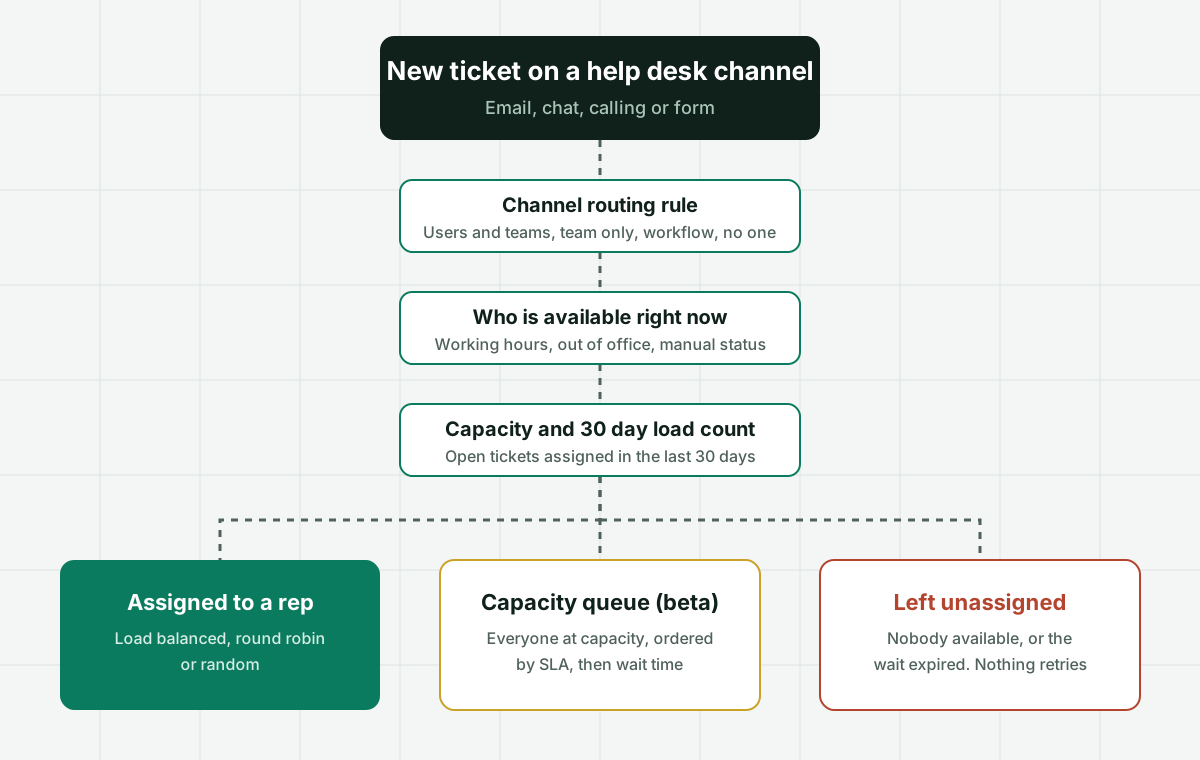
HubSpot ticket assignment happens in the help desk channel settings. Each connected channel (email, chat, calling, forms) has a routing rule that sends new tickets to specific users and teams, a team only, an assignment workflow, the contact owner, or no one. With Service Hub Professional or Enterprise and an assigned Service seat, tickets can be distributed load balanced (fewest open tickets), round robin or random, but only to available users. If nobody is available or everyone is at capacity, the ticket stays unassigned. Load is a count of open help desk tickets assigned in the last 30 days, not real effort.
Why it fits
This page is for a support lead, help desk manager or HubSpot admin on Service Hub whose tickets sit unassigned, pile up on one rep, or bounce between owners, and who needs every ticket owned by an available person with a recorded reason.
Unassigned is the default
HubSpot documentation says incoming help desk tickets are left unassigned by default. Until someone sets a routing rule on each channel, every new ticket waits for a rep to claim it, which is where cherry picking starts.
Nobody available means nobody owns it
Automatic assignment only gives tickets to available users, judged by working hours, out of office, or a manual status. If no agents are available, the ticket is left unassigned and nothing reassigns it later on its own.
Load balancing counts a 30 day window
When HubSpot picks the rep with the fewest open tickets, it counts only open help desk tickets assigned within the last 30 days. A rep sitting on 25 aging tickets assigned six weeks ago reads as nearly empty and gets the next one.
Capacity limits can strand tickets
With capacity limits on, a rep at the limit is skipped and the ticket goes to the next available user. If every targeted user is at capacity, the ticket stays unassigned until someone assigns it by hand, unless the capacity queue beta is turned on.
Workflows and routing can overwrite each other
HubSpot warns that when help desk routing and a workflow both assign tickets, ticket owners can be overwritten. Without the overwrite option, a rotation workflow only assigns tickets that have no owner yet.
Skills routing sits at the top tier
The help desk article on routing by agent skills lists Service Hub Enterprise, one ruleset per channel, and a ticket that matches a rule with no qualified user stays unassigned. The public pricing comparison also shows skill-based routing on Professional, so confirm your tier with HubSpot.
Side by side
How a HubSpot ticket gets an owner, and where each path leaks
| Method | What it does | Plan and seat | Leaks when | Picks a person |
|---|---|---|---|---|
| Manual assignment in help desk | A rep or manager sets the ticket owner | Any plan with help desk access | Reps pick the easy tickets first | Only by hand |
| Channel routing to specific users and teams | Load balanced, round robin or random among available users | Service Hub Professional or Enterprise, Service seat | Nobody is available, so the ticket stays unassigned | Yes, by open ticket count |
| Team only routing | Sets the team, leaves the owner empty | Service Hub Professional or Enterprise | Tickets wait for someone on the team to claim them | No |
| Contact owner routing | Sends the ticket to the owner of the contact | Service Hub Professional or Enterprise | The owner is a salesperson or has left the company | Yes, a fixed person |
| Ticket-based workflow with Rotate record to owner | Rotates owners in a workflow, often branched by category | Service Hub Professional or Enterprise | Workflow and channel routing both assign and overwrite each other | Yes, by rotation |
| Skill-based routing rules | Matches ticket conditions to agent skills, rule by rule | Service Hub Enterprise per the help article | A rule matches but no qualified user is available | Yes, among skilled users |
Sources: HubSpot Knowledge Base articles on routing tickets in help desk, setting ticket capacity limits, using the capacity queue, routing tickets by agent skills, and rotating ticket owners by skill with workflows, plus the HubSpot Service Hub pricing page (read October 2026).
In detail
How HubSpot ticket assignment really works, and what support teams end up building
Where HubSpot ticket routing is set up
Routing lives on the channel, not on the ticket pipeline. In HubSpot you open the settings icon, go to Inbox & Help Desk, then Help Desk, and work through Channels. Each connected channel, such as a support email address, a chat widget, a calling number or a form, gets its own routing rule. That has a consequence teams miss: if you connect a second support address next quarter, it starts with no routing until someone configures it, and its tickets land in Unassigned.
The routing rule offers six choices. Customer agent hands the conversation to the AI agent first. Specific users and teams distributes tickets to the people you name. Team only sets a team and leaves the owner empty. Use assignment workflow passes the ticket to a ticket-based workflow that contains an assignment action. Contact owner sends it to whoever owns the contact record. No one leaves it unassigned on purpose.
HubSpot sorts help desk tickets into three types for routing and capacity: Calling for tickets created from active calls, Messaging for live chat, and Email/Other for tickets created manually or through email, forms, workflows or the API. When the load balanced method picks a rep, it compares open tickets of the same type, so a rep buried in email tickets can still look free for chat.
How to assign a ticket to a team in HubSpot
There are two honest answers, depending on what you mean by assigning to a team. If you want the ticket to belong to the team and wait there, pick Team only on the channel routing rule. The ticket carries the team and no owner, and someone on the team has to claim it. This is the native version of a shared queue, and it has the same weakness every shared queue has: the person who looks first takes the quick ones.
If you want the ticket to land on one person inside the team, pick Specific users and teams, select the team, and choose a distribution method. HubSpot offers three. Load balanced distributes tickets to users with the fewest open tickets assigned. Round robin distributes to users in rotating, sequential order. Random distributes tickets randomly. All three only consider users who are available and who have access to tickets in help desk.
Teams that route by category, product line or region usually reach for a ticket-based workflow instead. A common pattern in HubSpot Community answers enrolls tickets where the category is known and the ticket owner is unknown, then branches on the category value and rotates each branch to a different set of owners. It works, but it creates a second assignment engine running beside the channel rule, which is where the next problem comes from.
Automatic ticket assignment in HubSpot, and the availability rule
Automatic assignment needs Service Hub Professional or Enterprise, and the reps who receive tickets need an assigned Service seat. HubSpot judges availability by working hours, out of office settings, or a status the rep sets manually. The documentation is direct about the edge case: by default, incoming tickets are only assigned to agents who are available, and if no agents are available, the ticket will be unassigned.
That sentence explains most Monday morning backlogs. A ticket that arrives at night or on a holiday is not queued for the first rep who comes online. It sits in Unassigned, and unless someone works that view, it ages there while the routed tickets that arrive at 9:05 get picked up first. Teams that cover several time zones see the mirror image: a rep in Denver marked available at 7 p.m. Eastern collects every evening ticket because nobody else is eligible.
Availability is also binary. A rep who is technically available but on a two hour onboarding call still counts as available, and the routing rule keeps sending tickets. HubSpot has no notion of partial availability or of a rep who is in but busy.
Why HubSpot load balancing feels unfair
The load balanced method sounds like the fix for uneven distribution, and often it is. The detail that decides whether it works is in one line of the routing article: when calculating a user's currently assigned tickets, only open help desk tickets assigned within the last 30 days are counted.
Read that against a real queue. A rep who took on a cluster of slow escalations five weeks ago and still has 25 of them open shows a count of zero for those tickets. The rep who closes quick password resets every day shows a higher count. The method sends the next ticket to the rep who is actually the most overloaded, and it is behaving exactly as designed.
The count is also a count. A billing dispute that needs three hours and a password reset that needs three minutes are both one open ticket. Status matters too: tickets parked in a waiting status still count as open unless you exclude them in the capacity settings. None of this is a bug. It is the difference between balancing ticket counts and balancing work, and it is the main reason teams that turned on load balancing still hear that distribution is unfair.
Ticket capacity limits and the capacity queue
Capacity limits are the second half of HubSpot load control. With Service Hub Professional or Enterprise and an assigned Service seat, a Super Admin or a user with permission to edit users can set a total ticket capacity per rep and limits per channel. Calling capacity can only be 0 or 1. Only open help desk tickets owned by the rep count, and you can exclude tickets by age, for example older than 30 days, or by status, for example Waiting on contact.
When a rep reaches the limit, HubSpot excludes them from automatic assignment and routes the ticket to the next available user. The rule also applies to tickets assigned by workflows. If every targeted user is at capacity, the ticket remains unassigned until someone assigns it by hand. Managers can still assign tickets manually to a rep who is over the limit.
HubSpot's capacity queue, a public beta a Super Admin has to enroll in, changes that last step. When all eligible agents are at capacity, new tickets go into a queue view ordered by priority, first by SLA and then by wait time, and the highest priority ticket goes to the first matching agent who frees up. Each channel can have a maximum wait. After that duration the ticket is removed from the queue and stays unassigned, and customers who abandon a call or chat drop off automatically. If you turn on capacity limits without the capacity queue, you have built a quiet path for tickets to go unowned during every busy hour.
Skill-based routing and rotating ticket owners by skill
HubSpot lets a Super Admin define skills under Inbox & Help Desk, Help Desk, Ticket sources and routing, Skill-based routing. Supported languages ship as default skills, each rep can hold a language as a main language (advanced fluency, industry terms) or a secondary language (conversational), and you can add custom skills such as a product line or a technical tier. Users need a Service seat to hold skills, and a channel has to be connected to help desk first.
Rules run in priority order. If the first rule does not match, the second is tried, and so on. Two limits shape real deployments. Each channel can have one ruleset. And if a ticket matches a rule but no user meets the criteria, the ticket remains unassigned; the fallback default rule only applies when no rule matches at all. A Spanish ticket at 11 p.m. with no Spanish speaker on shift therefore matches, finds nobody, and waits.
For workflows, the Rotate record by skill action assigns tickets by skill using load balanced, round robin or random distribution, with an option to assign to available users only, in which case tickets stay unassigned if everyone is away. Both the help desk skills article and the workflow action article list Service Hub Enterprise. HubSpot also warns that running help desk routing and a workflow assignment at the same time can overwrite ticket owners, and without the overwrite option selected, the workflow only assigns tickets that have no owner.
What HubSpot ticket assignment costs per seat
On HubSpot's public pricing page, read in October 2026, Service Hub Starter starts at $7 per seat per month on annual billing ($20 on monthly billing). Professional starts at $90 per seat per month billed annually or $100 monthly, plus a required one-time Professional Onboarding fee of $1,500. Enterprise starts at $150 per seat per month with a required one-time Enterprise Onboarding fee of $3,500. Automatic help desk routing, capacity limits and the capacity queue sit on Professional and Enterprise and need an assigned Service seat.
For a 12 rep team, Professional on annual billing is 12 x $90 x 12 = $12,960 a year plus $1,500 onboarding in year one. Moving to Enterprise for skills routing is 12 x $150 x 12 = $21,600 plus $3,500 onboarding, a difference of $8,640 a year in seats alone. That difference is the real price of skills routing in HubSpot for that team, and it is the number to hold up against any other way of doing it.
Where Assigner fits beside HubSpot, and where it does not
If your team is small, works the same hours, and handles tickets of roughly equal effort, HubSpot round robin or load balancing on Professional is enough. Turn it on for every channel, set capacity limits with the capacity queue, check the Unassigned view at the start of each shift, and you are done. Buying another tool would be waste.
Assigner earns its place when the problems above are the ones you live with: tickets that go unowned after hours, load counted in tickets instead of effort, a 30 day window that hides old backlog, workflows and channel rules overwriting each other, or skills routing that costs an Enterprise upgrade for every seat. Assigner sits beside HubSpot and picks one available person for each ticket using rules you control, such as round robin, weighted rotation, skills, live workload and working hours. Every assignment records the rule and the reason, so a manager can answer why a ticket went to a rep without opening a workflow history.
It also routes the work that never enters HubSpot, such as Jira issues, internal requests or leads, through the same rules, so one fairness model covers the whole team. Assigner is $7 per user per month billed yearly, or $15 billed monthly, and you count the people who receive tickets, not every HubSpot user. It is designed to help a team assign work fairly. It does not replace HubSpot, its tickets or its reporting.
Questions buyers ask
Frequently asked questions
How do I assign a ticket to a team in HubSpot?
Open the help desk channel settings and set the routing rule to Team only, which sets the team and leaves the owner empty, or to Specific users and teams, which picks one available person on that team by load balanced, round robin or random distribution. Both need Service Hub Professional or Enterprise.
How does automatic ticket assignment work in HubSpot?
Each help desk channel has a routing rule. With Service Hub Professional or Enterprise and an assigned Service seat, new tickets go to available users by load balanced, round robin or random distribution. Availability comes from working hours, out of office or a manual status. If nobody is available, the ticket stays unassigned.
Can HubSpot auto assign tickets?
Yes, on Service Hub Professional or Enterprise. Set a routing rule on each connected help desk channel, or use a ticket-based workflow with a rotate action. On Starter, tickets can be assigned manually, but the automatic distribution methods and capacity limits are not included.
Why are my HubSpot tickets unassigned?
Usually one of four reasons. The channel has no routing rule, since tickets are unassigned by default. Nobody was available when the ticket arrived. Every targeted rep was at capacity. Or a skills rule matched but no rep with that skill was available. Check the routing details on the ticket to see which.
Does HubSpot round robin ticket assignment consider availability?
Yes. Help desk routing only assigns to available users, and the Rotate record by skill workflow action has an option to assign to available users only. It does not consider how heavy each open ticket is, and a rep who is available but busy in a meeting still receives tickets.
How does HubSpot load balanced ticket assignment count open tickets?
It counts open help desk tickets assigned to the rep within the last 30 days, compared within the same ticket type (calling, messaging or email and other). Older open tickets do not count, so a rep with a large aging backlog can look lightly loaded.
What happens when all HubSpot agents are at capacity?
Without the capacity queue, the ticket stays unassigned until someone assigns it manually. With the capacity queue beta on, it waits in a queue ordered by SLA and wait time and goes to the first matching agent who frees up, unless the channel maximum wait expires, in which case it stays unassigned.
Is skill-based routing included in Service Hub Professional?
The HubSpot help article on routing help desk tickets by agent skills lists Service Hub Enterprise, and so does the Rotate record by skill workflow action. HubSpot's public pricing comparison also shows skill-based routing on Professional, so confirm with HubSpot for your contract before you plan around it.
Can a workflow and help desk routing both assign HubSpot tickets?
They can, and HubSpot warns that this can overwrite ticket owners. If the workflow does not use the overwrite option, it only assigns tickets that have no owner. Pick one engine per channel, or make the workflow enroll only tickets whose owner is unknown.
How much does HubSpot Service Hub cost for ticket routing?
Automatic help desk routing needs Professional, from $90 per seat per month billed annually ($100 monthly) plus a $1,500 onboarding fee. Enterprise, which the skills routing articles list, starts at $150 per seat per month plus $3,500 onboarding, per HubSpot's pricing page in October 2026.
Does HubSpot reassign a ticket when the owner goes out of office?
No automatic reassignment is documented for tickets already owned. Availability only affects who receives new tickets. A ticket owned by a rep who goes on vacation stays with that rep until a manager or a workflow you build moves it.
What does ticket assignment software for HubSpot cost?
Assigner is $7 per user per month billed yearly on Starter, or $15 billed monthly, with plans from 5 users. You count the reps who receive tickets, not every HubSpot user, and it routes tickets, leads and internal requests with the same rules.
Keep reading
Related routing pages worth reading next:
- HubSpot round robin - Rotating leads and contacts to owners, and where Rotate record to owner stops.
- Round robin ticket assignment - How rotation works across help desks, and why it needs load and availability.
- Support ticket routing - Routing every ticket to the right available agent, whatever the help desk.
- Zendesk omnichannel routing - The same capacity and availability questions in Zendesk.
- Freshdesk ticket assignment - Omniroute, round robin and load based assignment in Freshdesk.
- HubSpot ticketing system pricing - What Starter, Professional and Enterprise seats cost once routing is the requirement.
Stop hand-sorting your incoming work
Let Assigner route it to the right available person by skill, workload, and availability, using rules you control. Nothing sits unassigned and no one gets cherry-picked. Every assignment shows why.