HaloPSA Ticket Rules for Round Robin and Load Balance Ticket Assignment
HaloPSA ticket rules can choose a Team, set an Agent and attach a Workflow, but those decisions are different from distributing work fairly inside the team. HaloPSA round robin follows agent IDs without checking open load. Load Balance checks assigned tickets, with settings that change which tickets count. Both depend on status and login settings for availability. For an MSP service desk, the useful question is which decision owns the person assignment and what happens when nobody qualifies. This guide explains the native controls, their execution traps and where Assigner adds a decision based on working hours, live availability, skills and open load.
In short
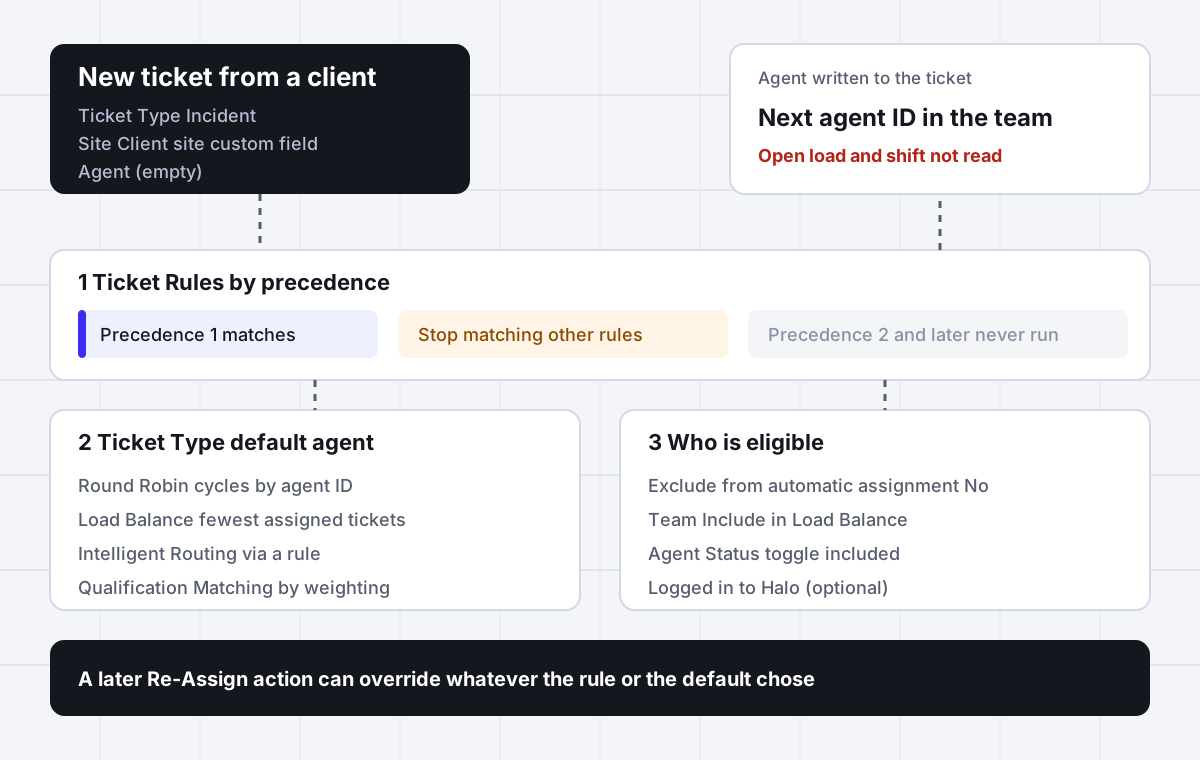
HaloPSA ticket rules live under Configuration > Tickets > Ticket Rules. They match criteria and apply outcomes such as Team, Agent, SLA, Status and Workflow. Precedence 1 is highest, and Stop matching other rules when matched ends evaluation at that matching rule. For automatic assignment on creation, set the Agent dropdown on the Ticket Type Defaults tab to Round Robin or Load Balance. Round Robin cycles through eligible agents by ID without considering workload. Load Balance chooses the agent with the fewest counted assigned tickets, or uses remaining estimated time when configured. Halo also supports Intelligent Routing and Qualification Matching.
Why it fits
For MSP service managers and dispatchers on the HaloPSA ticketing system who need to know why a technician got a ticket and why unassigned work is waiting.
Round robin follows agent IDs without reading load
Halo describes Round Robin as cycling through Agents based on their ID, with no logic behind the order and no other way to configure it. An agent with a difficult backlog still takes the next turn. Choose Load Balance when the decision needs assigned ticket counts rather than equal turns.
Availability depends on status toggles and login state
For Round Robin and Load Balance, Agent Status settings decide whether someone is included, with separate controls for chat and non chat tickets. Halo recommends the logged in agents setting too. These are status and login checks, not a documented shift calendar, so a forgotten status can leave someone eligible outside their working hours.
Three settings can write the same Agent field
The Ticket Type default, a Ticket Rule outcome and a later Re-Assign action can all set the agent, and Halo says a rule assignment can be overridden by reassigning the ticket. When the owner looks wrong, check which of the three wrote the field last before assuming the rotation or the load calculation chose that person.
A matching stop rule quietly ends evaluation
Precedence 1 is highest. When a matching rule has Stop matching other rules when matched selected, later matching rules do not run. A broad rule can therefore prevent a more specific client or routing rule from contributing its outcome. Read the matching rule order before editing the downstream rule.
Scheduled load balancing is not immediate dispatch
Halo can distribute unassigned tickets on a schedule by Team or Ticket Type, with a configured wait. Halo notes that the assignment scan can take a few minutes to kick in. That delay belongs in the service desk process, especially when someone expects an unassigned ticket to receive an owner immediately.
New Ticket screen rules can flip their own fields
Rules recheck after each field change on the New Ticket screen. If an outcome writes a field used in its own criteria, the rule can match, apply, unmatch and roll back repeatedly. Halo documents the field appearing to flip back and forth and recommends a separate dummy custom field. Existing ticket rules fire once.
Side by side
How HaloPSA chooses an agent and where each method needs care
| Method | Where you set it | How it picks the agent | Skips an agent when | Where it leaks |
|---|---|---|---|---|
| Ticket Rule with a named Agent | Configuration > Tickets > Ticket Rules, Agent outcome | Sets the specified Agent instead of relying on the Ticket Type default | Allowed Teams or Agent permissions prevent assignment | A fixed person decision does not balance work and later reassignment can override it |
| Round Robin | Ticket Type > Defaults > Agent = Round Robin | Cycles through eligible agents by ID, not workload | Excluded from automatic assignment, Team not included, status excluded or login required and absent | Equal turns ignore assigned ticket counts and do not provide a shift calendar |
| Load Balance | Ticket Type > Defaults > Agent = Load Balance | Fewest counted assigned tickets, optionally remaining estimated time | Eligibility checks fail, configured ticket cap is exceeded or minimum interval prevents selection | Status counting, SLA hold settings and missing estimates can distort the intended comparison |
| Intelligent Routing | New Ticket rule > Agent = Intelligent Routing, stop matching deselected | Uses availability and previous interactions with the same user | Allowed Teams or Agent permissions prevent assignment | Continuity depends on cutoff days and maximum Tickets settings |
| Qualification Matching | Configuration > Teams & Agents > Qualification Matching | Matches weighted qualifications, with optional mandatory requirements | A mandatory qualification is missing or its dates do not cover the assignment | Unmatched cases need a deliberate Load Balance fallback or Unassigned outcome |
| Scheduled Load Balance | Scheduled Load Balancing configuration by Team or Ticket Type | Applies load balancing to unassigned tickets after the configured wait | Round Robin and Load Balance eligibility requirements are not met | The assignment scan can take a few minutes to start |
| Manual reassignment | New Ticket Agent field or an Action with Re-Assign in its field list | Uses the reassignment choice made by the operator | Allowed Teams or Agent permissions prevent assignment | A later reassignment overrides a rule assignment, so the original rule no longer explains the owner |
Based on official Halo guides at usehalo.com/guides/2050, 2868, 2870, 2867, 2871 and 1923, checked October 23, 2026. Allowed Teams on the Ticket Type Allowed Values tab and Agent permissions are respected by every assignment method. Version specific settings below are identified explicitly.
In detail
How to build a HaloPSA ticket workflow with a clear assignment decision
How ticket rules execute and which assignment wins
Start under Configuration > Tickets > Ticket Rules. A rule has a Use setting, criteria, precedence and outcomes. Uses include New tickets and existing tickets, New Ticket, Existing Ticket and Manual. Manual rules support bulk processing with Batch Size and Delay between Batches.
Precedence 1 is highest. Any criteria group that is fully met can match the rule, and group sequence controls the check order. Outcomes can set Team, Agent, SLA, Status, Workflow, colour and tags. Selecting Stop matching other rules when matched ends evaluation at the first matching rule with that setting.
Give the person decision a clear owner
A rule that sets the Agent preempts the Ticket Type default for that assignment. Halo also states that this assignment can be overridden by reassigning the ticket. Treat the default, the rule and subsequent reassignment as separate decision points. A current owner does not prove that the default Round Robin or Load Balance setting selected that person.
General Settings control whether rules are checked after submission instead of on the New Ticket screen, whether they continue to apply after logging, and whether every rule must contain Ticket Type criteria. When continued checking is unchecked, rules apply only at creation. These settings belong in any investigation of a rule that seems to do nothing on existing work.
On the New Ticket screen, rules evaluate after every field change. A rule that writes its own criteria field can repeatedly match and unmatch, making the field flip back and forth. Halo recommends a separate dummy custom field. On existing tickets the rule fires once.
Choose round robin for turns or load balance for counted work
HaloPSA round robin cycles through Agents based on their ID. Halo says there is no logic behind that order and it is not configurable another way. Agent numbers on the team list determine the sequence. The method does not read how many tickets someone already holds, so a fair sequence can still create an uneven workload.
Load Balance selects the agent with the fewest assigned tickets that count toward the calculation. Under Configuration > Tickets > Ticket Statuses, each status has Include in Load Balance calculations. SLA hold tickets are excluded unless Include Tickets on SLA hold in Load Balancing is enabled. Agree what represents active work before comparing technician queues.
| What your desk wants to equalize | Native method to consider |
|---|---|
| Turns among eligible agents | Round Robin |
| Counted assigned tickets | Load Balance |
| Remaining estimated effort | Load Balance based on remaining Estimate time |
The estimated time option needs the Estimated Time field on every Ticket Type or a default estimate. A ticket count is also only a count, not a claim that every ticket takes the same effort.
Set automatic assignment on creation under Configuration > Tickets > Ticket Types > Defaults, with Agent set to Round Robin or Load Balance. Manual choices require Show Load Balance/Round Robin on the New Ticket Screen and the Agent field in the field list. An Action needs Re-Assign in its field list to offer reassignment.
Per Ticket Type, Load Balance can enforce a minimum interval between assignments to each Agent and exclude agents above a ticket threshold. Counts include all ticket types by default, with an option to count only this type and optional limits per Agent or Team. Check those settings before blaming the selection order.
Make status and login match the coverage you intend
Both Round Robin and Load Balance require the Agent setting Exclude this Agent from automatic assignment (Load Balance, Round Robin etc) to be No. Find it on the Agent Details tab. The Team must also have Include in Load Balance Calculations selected. These prerequisites matter even when the chosen method is Round Robin.
Availability then comes from Configuration > Teams & Agents > Agent Status. The relevant control is Include Agents with this Status in Load Balance and Round Robin for Tickets not linked to a Chat. Tickets linked to a chat have a separate toggle.
Halo recommends Only Round Robin and Load Balance to logged in Agents, under Configuration > Tickets > General Settings. With that setting enabled, being on an included status is not enough if the person is not logged in. Conversely, login alone does not make an excluded status eligible.
Test the handover rather than assuming a shift calendar
The documented availability signals here are the status someone remembered to set and their login state. These guides do not describe a shift calendar for this decision. A roster in the service manager spreadsheet does not itself change either signal. Make the status update part of the handover and test both chat and non chat tickets when those paths matter.
- Check the Agent exclusion setting and Team inclusion setting.
- Check the status toggles for the relevant ticket category.
- Check whether login is required and whether the intended agent is logged in.
- Check Allowed Teams on the Ticket Type and Agent permissions.
Use qualifications for skills and intelligent routing for continuity
Qualification Matching is configured under Configuration > Teams & Agents > Qualification Matching. Each qualification has a weighting. The optional mandatory flag says Agents must have this qualification to be assigned a Ticket that matches this qualification. Use that distinction deliberately when a skill is required rather than simply preferred.
Criteria lines are OR, while criteria groups are AND. That differs from the Ticket Rule group matching described earlier.
Agent qualifications have start and end dates. Review those dates when a specialist unexpectedly disappears from consideration or when a temporary qualification should stop counting. For cases that do not match, Halo offers Load Balance options including assignment to Unassigned. Decide that fallback alongside the qualification policy instead of leaving the unmatched path unexplained.
Add Action when qualification is matched writes an audit action on the ticket. That gives the desk a concrete record of the match. It should not be confused with a complete explanation of every possible assignment decision or every skipped agent.
Keep customer continuity separate from skill eligibility
Intelligent Routing uses agent availability and previous interactions with the same user. Intelligent Routing cutoff days and Intelligent Routing maximum Tickets control its operation. To force it on new tickets, create a Ticket Rule with Use set to New Ticket, deselect Stop matching other rules when matched and set the Agent outcome to Intelligent Routing.
Give unassigned tickets a deliberate route back into work
A Ticket Type default assigns on creation. Waiting unassigned work needs its own handling. Halo supports Scheduled Load Balancing configuration type set to Configured per Team or by Ticket Type. Configure Run Load Balance on unassigned Tickets on a schedule and the minutes to wait for the relevant scope.
Halo notes that it can take a few minutes for the assignment scan to kick in. That means a ticket remaining unassigned immediately after a configuration change does not by itself prove the setup failed. Check the configured wait and allow for the scan before changing several unrelated controls and losing track of the original cause.
There is also an option to Automatically assign the next available Unassigned Ticket when an Agent closes a Ticket. From version 2.238, a status can Queue a System Automation to Load balance Unassigned Tickets to the Agent. Confirm the version before making that status option part of the desk procedure.
Separate timing from eligibility when debugging
- Confirm whether scheduled balancing is configured by Team or Ticket Type.
- Check that scheduled processing is enabled and review the wait.
- Check Agent exclusion, Team inclusion, status and login settings.
- Check the applicable Load Balance limits and counted statuses.
- Check Allowed Teams and Agent permissions for the waiting ticket.
Changing the schedule does not remove an eligibility restriction. Likewise, making an agent eligible does not erase the documented scan delay. Keep a visible unassigned queue in the dispatch process so someone can distinguish waiting for a scan from waiting for a suitable person.
Keep MSP client policies separate from the person selection
For an MSP, the routing policy often has to answer both where the ticket belongs and which technician should take it. HaloPSA automation can express Team, SLA, Status and Workflow outcomes through Ticket Rules. Treat those outcomes as the client service policy, then decide explicitly whether a rule or an assignment method owns the Agent field.
From version 2.238, User and Site custom fields can be Ticket Rule criteria. A Site custom field can therefore represent a client specific service policy that your rule matches. Use the information actually maintained in that field, and confirm the version before designing a rule around it. The field is a criterion, not an automatic source of staffing information.
For co-managed work, document which tickets should stay with the internal team and which should reach the MSP team, then express the supported distinctions in rule criteria and Team outcomes. Keep Allowed Teams on the Ticket Type and Agent permissions aligned with those boundaries. All assignment methods respect those controls, so a routing preference cannot substitute for the required access.
Review overlapping client and general rules together
A general intake rule with Stop matching other rules when matched can prevent a more specific client rule below it from applying. Review the precedence of the whole matching set, including outcomes that set Workflow or SLA without setting Agent. A correct person assignment alone does not establish that the intended client workflow was applied.
When moving a policy from new tickets to existing work, check both the rule Use and Continue to check and apply Rules once a Ticket has been logged. For deliberate bulk application, Manual rules expose Batch Size and Delay between Batches. Use the appropriate path rather than assuming a change to a creation rule will reprocess the waiting queue.
What Assigner adds beside HaloPSA
Halo already provides Round Robin, Load Balance, Intelligent Routing, Qualification Matching and Ticket Rules. Halo includes all features at one per agent price, so none of those capabilities is a paywalled upgrade. The reason to consider Assigner is a different person selection policy, not access to a native Halo feature that your plan lacks.
Assigner sits beside HaloPSA and decides the person from live availability, open load, skills and working hours. The HaloPSA ticketing system remains where the desk manages its tickets and service workflow. Keep the client and access rules explicit, then make the person decision use the operational signals the team actually wants to follow.
- Working hours alongside availability. Eligibility reflects when the person is working as well as current availability, instead of depending only on a remembered Halo status and login.
- Open load alongside skills. The decision considers both suitability and existing work rather than rotating by ID alone.
- A reason on every assignment. Assigner records why the person was selected, giving the dispatcher a basis for explaining the choice.
The AI assists, the rules stay yours and every assignment is explainable. Keep a clear owner for the assignment decision across the workflow, because a later reassignment in Halo can still change the ticket owner. This is a companion routing policy, not a reason to discard the native controls that already meet your needs.
Assigner pricing is per user per month. Starter is $7 billed yearly or $15 billed monthly. Team is $18 billed yearly or $36 billed monthly. Business is $36 billed yearly or $72 billed monthly. Enterprise is $49 billed yearly or $98 billed monthly. Compare the policy you need with the native setup before adding another tool.
Questions buyers ask
Frequently asked questions
How do HaloPSA ticket rules work?
HaloPSA ticket rules match criteria and apply outcomes such as Team, Agent, SLA, Status and Workflow. Configure them under Configuration > Tickets > Ticket Rules. Precedence 1 is highest, and any fully met criteria group can match. A matching rule with Stop matching other rules when matched selected ends evaluation before later rules can apply.
Does HaloPSA have round robin assignment?
Yes, HaloPSA has Round Robin assignment that cycles through eligible agents by ID. Halo describes the sequence as having no logic behind it and says it is not configurable another way. It does not consider how many tickets each agent already holds. Agent exclusion, Team inclusion, status, login settings and access controls affect eligibility.
How do I set up round robin in HaloPSA?
Set Agent to Round Robin on the Ticket Type Defaults tab under Configuration > Tickets > Ticket Types. Set Agent exclusion from automatic assignment to No and enable Include in Load Balance Calculations for the Team. Include the relevant Agent Status, review the logged in agents setting and confirm Allowed Teams and Agent permissions.
What is the difference between load balance and round robin in HaloPSA?
Round Robin cycles by agent ID without checking workload, while Load Balance chooses the agent with the fewest counted assigned tickets. Ticket status settings and SLA hold inclusion change that count. Load Balance can alternatively use remaining estimated time, provided every Ticket Type has the Estimated Time field or a default estimate is supplied.
Why are HaloPSA tickets not being assigned automatically?
Automatic assignment can fail because the Ticket Type default, rule outcome or agent eligibility settings do not permit the expected choice. Check Agent exclusion, Team inclusion, Agent Status, login requirements, Allowed Teams and permissions. Then inspect rule precedence and Load Balance limits. For scheduled unassigned work, allow for the configured wait and the documented scan delay.
Can HaloPSA assign tickets based on agent skills?
Yes, HaloPSA Qualification Matching assigns using weighted qualifications and can require a qualification before an agent is eligible. Configure it under Configuration > Teams & Agents > Qualification Matching. Criteria lines are OR and criteria groups are AND. Review qualification dates and unmatched fallback settings, and enable the audit action when you need the match recorded.
How does HaloPSA intelligent routing work?
HaloPSA Intelligent Routing uses agent availability and previous interactions with the same user. Its settings include Intelligent Routing cutoff days and Intelligent Routing maximum Tickets. To force it on new tickets, create a rule with Use set to New Ticket, deselect Stop matching other rules when matched and set the Agent outcome to Intelligent Routing.
Can HaloPSA ticket rules apply to existing tickets?
Yes, HaloPSA rules support Existing Ticket and New tickets and existing tickets uses. Continued automatic checking also depends on Continue to check and apply Rules once a Ticket has been logged. When unchecked, rules apply only at creation. Manual rules offer bulk processing with Batch Size and Delay between Batches for deliberate application to existing work.
Does HaloPSA round robin follow technician shifts?
The documented Round Robin availability controls use Agent Status and optionally login state, not a shift calendar. Separate status toggles cover tickets linked to a chat and those not linked to a chat. Halo recommends restricting assignment to logged in agents. A shift roster therefore needs an operating process that keeps those eligibility signals accurate.
Why does a HaloPSA ticket field keep changing back?
A New Ticket screen rule can cycle when its outcome changes a field used in its own criteria. Rules recheck after each field change, so the rule can match, apply, unmatch and roll back, making the value flip back and forth. Halo recommends a separate dummy custom field. On existing tickets, the rule fires once.
How does HaloPSA assign unassigned tickets on a schedule?
HaloPSA runs scheduled Load Balance by Team or Ticket Type after a configured wait. Enable Run Load Balance on unassigned Tickets on a schedule in the relevant configuration. Halo notes the scan can take a few minutes to start. Another option assigns the next available unassigned ticket when an agent closes a ticket.
What does Assigner add to HaloPSA ticket assignment?
Assigner chooses the person using live availability, open load, skills and working hours, and writes the reason on every assignment. It sits beside HaloPSA. Halo already includes its native assignment features at one per agent price, so this is a policy choice. Assigner Starter costs $7 per user per month billed yearly or $15 billed monthly.
Keep reading
More on MSP ticket rules, person selection and the cost of routing
- Atera ticket automation rules - How the group and technician actions interact and where a rotation needs more context.
- Autotask auto assign tickets - How workflow rules turn incoming MSP tickets into technician assignments.
- ConnectWise auto assign tickets - Service board assignment, workflow rules and the decisions that still need dispatch.
- MSP ticket assignment - Design client routing and technician selection across a managed services desk.
- Round robin ticket assignment - When equal turns work and when availability or workload should change the decision.
- HaloPSA pricing per agent - Review HaloPSA per agent pricing alongside the native routing features.
- Round robin vs load balancing - Compare rotation with workload based selection before choosing a distribution policy.
Stop hand-sorting your incoming work
Let Assigner route it to the right available person by skill, workload, and availability, using rules you control. Nothing sits unassigned and no one gets cherry-picked. Every assignment shows why.